![wordmark-white.svg]](https://help.rafflebox.ca/hubfs/template-files/wordmark-white.svg)
1. Login to the Rafflebox dashboard (https://dashboard.rafflebox.ca/)
2. Select the Raffles:
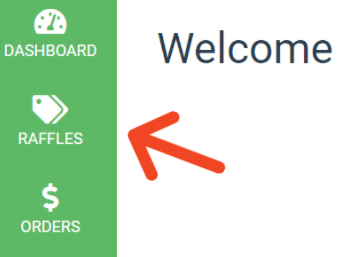
- On desktop, select the RAFFLES icon on the left hand panel (image below-left).
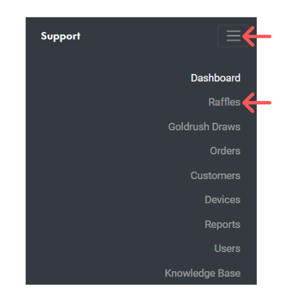
- On mobile, select the menu in top right corner and then select Raffles (image below-right).
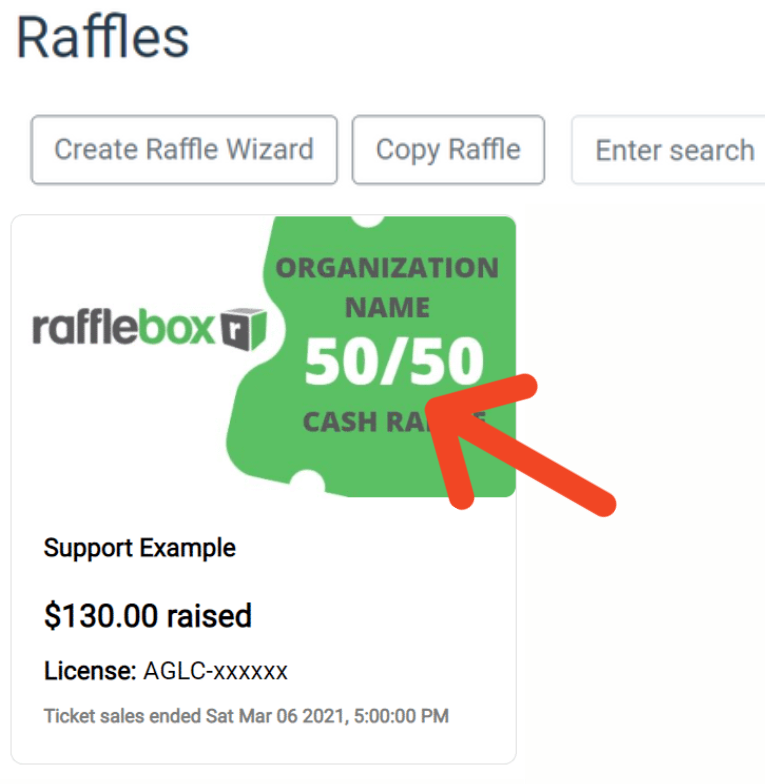
3. Select your raffle.
4. Under the Sales Summary tab, you will find a report outlining the current performance of your raffle. Total sales by type, Online or In-Venue (POS terminal sales), Refunds, Processing and Platform Fees and a Prize Payout calculation for 50/50 draws.
.png?width=688&height=387&name=Support%20Docs%20(1920%20%C3%97%201080%20px).png)
5. You can also select the download button to generate the CSV file.